Updated November 9, 2026. Desktop workflow; controls and capabilities depend on the app version.
What text-based video editing changes
Text-based video editing connects transcript words to moments in a recording. You can use the words to find a sentence instead of locating it only by scrubbing the timeline. Removing selected speech can cut the matching video interval. Correcting a spelling mistake in a caption is a different action.
This is useful for an explanation, tutorial, interview or recorded presentation with spoken content. A silent screen recording will not produce a useful speech transcript. Visual changes and awkward joins still need a playback check.
Prepare the video and generate a transcript
- Keep an original copy of your recording. In Penbeam’s desktop library, choose Open file… for a playable MP4, MOV or M4V, or open a recording you just made. Container support does not guarantee every codec will play.
- Choose Generate subtitles. On first use, the app asks to download the speech model. After it is prepared, transcription runs on your computer.
- Wait for transcript lines to appear. Listen while proofreading names, numbers and technical terms. Poor audio or overlapping speech can produce missing or incorrect words.
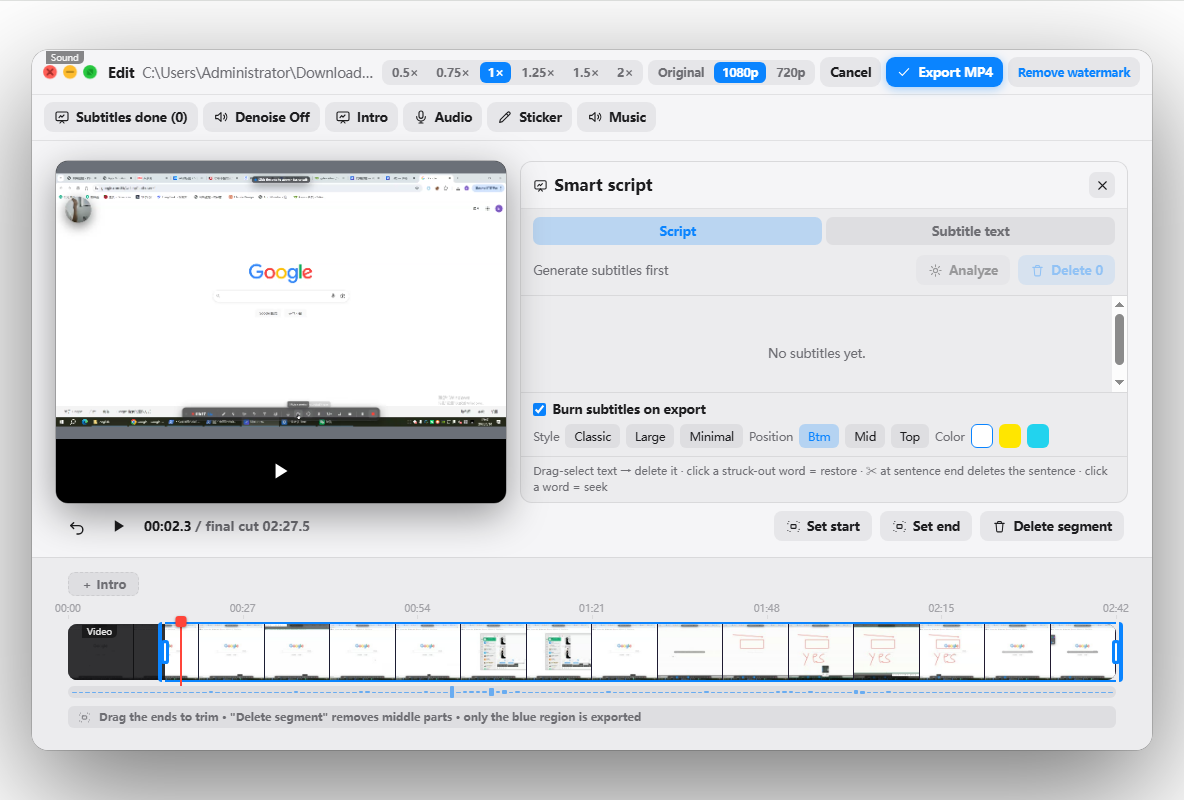
- Open Text edit if the transcript panel is closed. Choose Script for transcript-based cuts or Subtitle text for caption corrections.
Generating captions does not make all editing and export features unlimited. Check the current desktop plans, and try the workflow on a short, non-sensitive clip first.
Select transcript text and remove the matching speech
- In the Script view, play the section you want to change and locate its words.
- Drag across the unwanted text, then use Delete selection. The selection is linked to an interval in the video edit.
- For a whole sentence, use the sentence’s scissors control and review the pending deletion before applying it.
- Play across the join. Check that the start of the next word, a necessary breath or an on-screen action was not removed.
- To restore a drag-selected deletion in the current panel, click a struck-out word from that deletion. Review the resulting timeline again.
Example: remove an aside without changing the remaining words
Illustrative script: “Open Settings. I should explain something else first. Choose Audio.” If the aside is unnecessary, select that sentence in the Script view, apply its deletion and replay the transition from “Settings” to “Choose Audio.”
If the screen shows an important click during the deleted sentence, the cut may also remove that visual step. Keep the section or choose a different edit. Transcript editing is a way to locate footage, not a guarantee that every text deletion produces a natural result.
For “Open Setings,” fixing the spelling in Subtitle text changes the displayed caption. It does not change what the speaker said or remove footage. If you need a different spoken explanation, keep that distinction in mind when planning a retake.
Handle fillers and pauses after the main content
First remove sections you know are unnecessary. Then review pauses, repeated attempts and filler candidates. A word such as “like” can carry meaning, and silence can give the viewer time to follow a demonstration.
For the review-first controls, see removing filler words from a video. For the app’s analysis and toolbar differences, use the Penbeam smart edit guide. Automatic detection can miss or misclassify content.
Export and check the finished file
Use Save subtitles to write caption changes to the associated SRT. That saves subtitles; it is not the same as exporting a new video. To include text in the picture, enable Burn subtitles on export and choose Export MP4. If you do not need visible captions, verify the subtitle option before exporting.
Choose an output name that preserves your original recording. Open the actual exported file and check the joins, sound, captions and any on-screen actions around a cut. For the full subtitle workflow, see adding subtitles offline.
Penbeam is a desktop text-based video editing tool, not an upload-and-edit browser service. If your task is reading a script while filming on a phone, use the separate mobile prompting page.
Frequently asked questions
Does correcting transcript text always cut the video?
No. In Penbeam, Subtitle text is for caption corrections; Script selection and deletion controls are for removing matching footage. Check which mode you are using.
Can I edit a video by deleting text offline?
Penbeam’s desktop transcription runs locally after the first-use model download. Account and other service functions may still require a connection. Review current feature and export limits.
Is transcript-based editing frame-perfect?
Do not assume every automatic word boundary is exact. Replay joins and check speech, breaths and on-screen actions before exporting.
Download for your computer, check the transcript and export a short test. Review current plan limits before purchasing.