Key takeaways
- Automatic subtitles come from speech recognition that transcribes your audio with timestamps and overlays the text — no manual typing.
- Captions improve accessibility, help non-native speakers and sound-off viewers, and make a lecture searchable.
- Local (offline) captioning keeps the video on your computer — better for student privacy than cloud tools that require an upload.
- Penbeam generates subtitles locally with a bundled offline model (whisper) and word-level timing, then lets you edit text/timing and burn-in or export SRT.
- Works on macOS 12.3+ and Windows 10+. Free to try; subtitle and editing features unlock on Pro ($39.99/year, education discount).
To add subtitles to a video automatically, you use a tool that runs speech recognition on the audio, produces timed caption lines, and overlays them — no manual transcribing. The better tools do this on your own computer, so the video never gets uploaded. Here’s how it works and how to do it cleanly.
Why auto subtitles are worth it
- Accessibility. Captions are essential for deaf and hard-of-hearing students, and often required by institutions.
- Comprehension. Non-native speakers and anyone watching in a quiet library or noisy commute follow along far better with text.
- Retention. Seeing key terms spelled out — names, formulas, acronyms — reduces confusion and re-watching.
- Searchability. A transcript makes the lesson indexable, so students (and search engines) can find the exact moment a topic is covered.
How automatic captioning works
Under the hood, an automatic speech recognition (ASR) model listens to the audio and outputs the words it hears, each tagged with a start and end time. Those word-level timestamps are what let the captions appear in sync, line by line. Good systems also segment the text into readable chunks rather than one endless block. Once you have timed text, the tool can either burn it into the video pixels or save it as a separate subtitle file (like SRT) that players display on top.
Local vs cloud captioning
This is the choice that matters most for teachers:
- Cloud captioning uploads your video to a server, transcribes it there, and sends captions back. Convenient, but your footage — and your students’ faces and voices — leave your control, and you’re subject to upload time and quotas.
- Local captioning runs the speech model on your own machine. Nothing is uploaded, there’s no per-minute quota, and it works offline on a plane or a flaky campus network.
Step by step in Penbeam
- Record or import. Record a lesson in Penbeam, or bring in an existing video file.
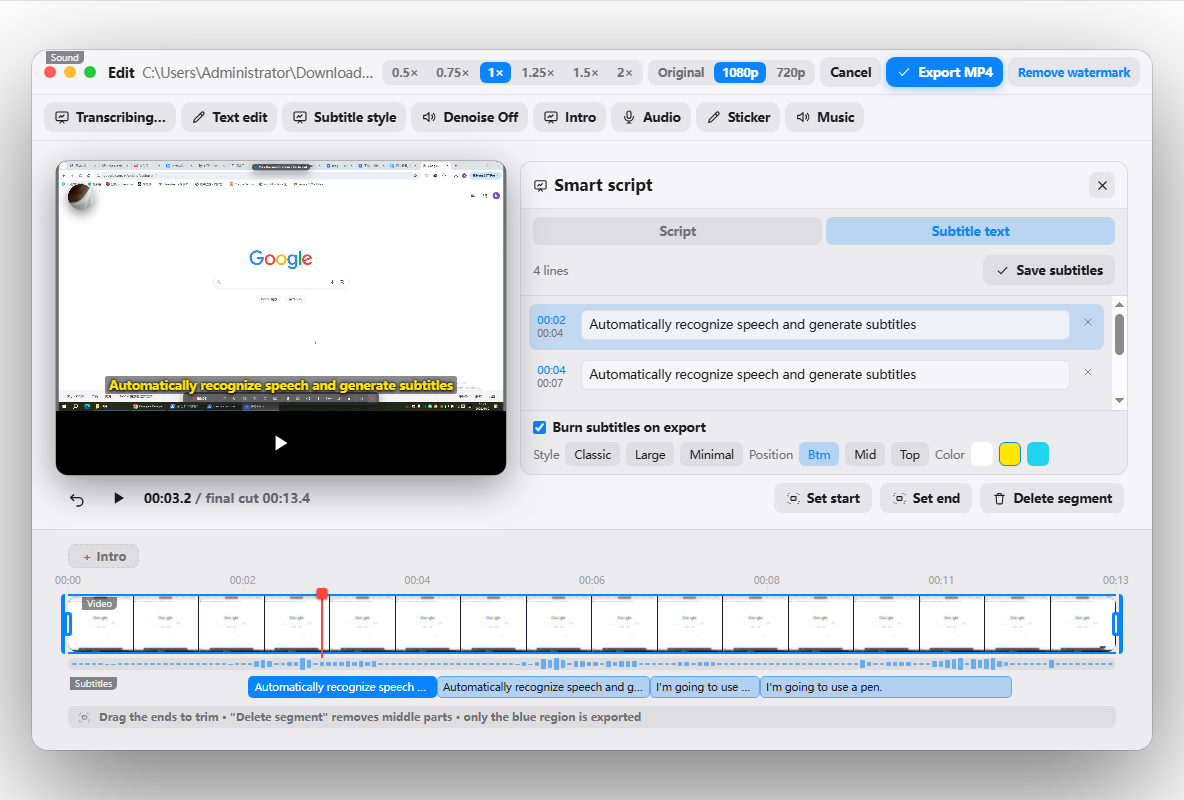
- Generate subtitles. Click generate; the offline model transcribes the audio with word-level timing. On first use it downloads the model once, then runs entirely locally.
- Review the captions. They appear as timed lines you can scrub through alongside the video.
Editing and exporting captions
Auto captions get you 90% of the way; the last 10% is proofreading. In Penbeam’s caption editor you can:
- Fix misheard names, jargon and acronyms by editing the text directly.
- Nudge timing or merge/split lines so captions are comfortable to read.
- Choose to burn captions into the video (always visible) or export an SRT file for YouTube, your LMS or other players.
Because subtitles share the same transcript, you can also use it to remove filler words and silences in one pass. Penbeam runs on macOS and Windows and is free to try; subtitle and editing features unlock on Pro. Download from lecta.cc/download.
FAQ
How do I add subtitles to a video automatically?
Use a tool with built-in speech recognition: it transcribes the audio with timestamps and overlays the captions for you. In Penbeam you record or import a video, click generate subtitles, and the captions appear with word-level timing, ready to edit and burn in or export as SRT.
Can I generate subtitles without uploading my video to the cloud?
Yes. Penbeam transcribes locally on your computer using a bundled offline speech model (whisper), so the video and audio never leave your machine. That matters for student privacy and for content you can’t upload.
Are automatic subtitles accurate?
Modern offline models are quite accurate for clear speech, and Penbeam uses word-level timestamps so captions line up tightly. You should still proofread names, jargon and acronyms — the built-in caption editor lets you fix text and timing in a few clicks.
Can I export subtitles as an SRT file?
Yes. You can burn captions into the video or export a standalone subtitle file to use on your LMS, YouTube or other platforms.
Free download for macOS and Windows. Annotate while you talk; auto subtitles when you finish.