Key takeaways
- The fast way: generate subtitles first (for word-level timestamps), then let a tool auto-detect and cut "um/uh", long silences and retakes.
- Removing silences works from audio alone; removing filler words and retakes needs the subtitle timestamps to locate each word.
- Good tools mark rather than hard-delete — you review the list and skip anything you want to keep, so meaningful words survive.
- Penbeam’s one-click smart edit bundles remove-silences + remove-fillers + remove-retakes, with AI noise reduction alongside.
- macOS 12.3+ and Windows 10+. Free to try; smart edit unlocks on Pro ($39.99/year, education discount).
The easiest way to remove filler words from a video is to generate subtitles first — which gives you precise word-level timing — then run an automatic pass that finds "um/uh", long pauses and retakes and cuts them after you confirm. No scrubbing the waveform one "um" at a time.
Why fillers and pauses hurt
Nobody narrates a lesson in one clean take. You think mid-sentence, an "um" slips out, you pause for a few seconds to find the next point. You don’t notice while teaching — but on playback, these empty words and gaps can eat a tenth of the runtime or more. For students the effect is direct: attention drifts. A two-second point padded with "um… so… like…" feels slow and unsure, and once the rhythm sags, viewers tune out. Cut them and the same content feels tight, confident, and gets finished more often.
Why manual cutting is painful
Doing this by hand is brutal. You listen to the whole thing, and every time you hear an "um" you drag the playhead, zoom the waveform, find the boundaries, cut, and rejoin. Word by word, a 40-minute lecture can take one to two hours just to de-filler — longer than recording it. Silences are worse: a flat line on the waveform is easy to miss, and trimming one risks clipping the breath on either side. Retakes are the worst — find the bad take, delete it, and make sure the join doesn’t sound abrupt.

How automatic removal works
This is exactly the kind of rule-based, tedious work software should do:
- Detecting silences: analyze the audio’s volume envelope and flag stretches below a threshold for longer than a set duration — the long pauses worth cutting. No subtitles required.
- Locating fillers via word-level timestamps: speech recognition tags each word with a precise start/end time. Matching against a filler list ("um, uh, er, like, you know") tells the tool exactly which frames to remove.
- Detecting retakes: when you flub a line and say it again, the two attempts are highly similar in the transcript. The tool finds the duplicate and drops the abandoned take, keeping the clean one.
One-click smart edit in Penbeam
Penbeam packages this into one step that combines remove-silences + remove-fillers + remove-retakes:
- After recording, click to generate subtitles (local, with word-level timing).
- Open smart edit — Penbeam scans once and marks every silence, filler and retake, listed for review.
- Skim the list; cut them all in one click, or un-mark any segment you want to keep. Nothing is hard-deleted without your confirmation.
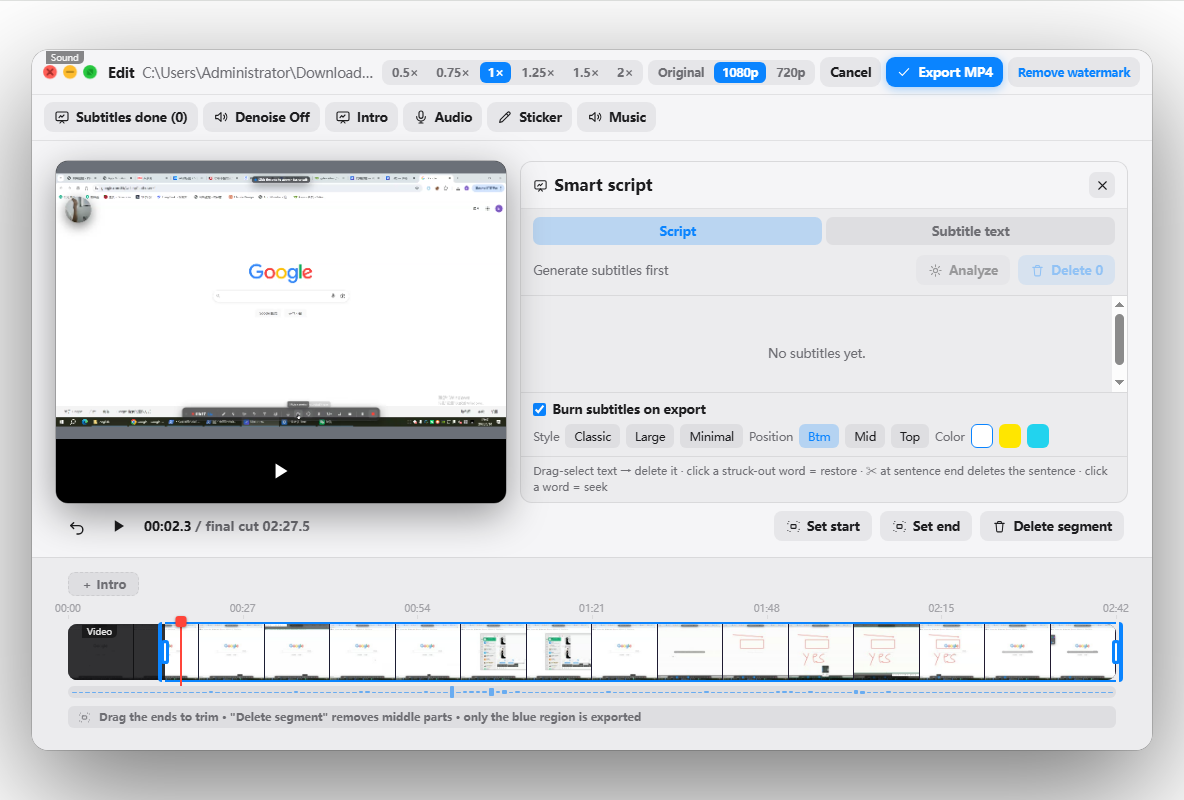
"Mark first, you confirm, then cut" saves the hunt without letting the machine decide for you. Add the built-in AI noise reduction to strip fan and keyboard noise, and a rambling, noisy take becomes clean and tight in minutes. See the features, or download from lecta.cc/download. Free to try on macOS and Windows; smart edit unlocks on Pro.
FAQ
How do I automatically remove filler words from a video?
Generate subtitles first so you have word-level timestamps, then use a tool that detects "um/uh/like" and silences and marks them for removal. In Penbeam, one-click smart edit finds fillers, long pauses and retakes, lists them for you to confirm, and cuts them in a single pass.
Does removing filler words delete the wrong words?
Good tools mark rather than hard-delete. Penbeam lists every detected filler and pause so you can review and skip any you want to keep — meaningful words are not forced out, and you confirm before anything is cut.
What is the difference between removing silences and removing filler words?
Removing silences cuts stretches with no speech (thinking, page turns) using audio detection — no subtitles needed. Removing filler words cuts audible-but-empty words ("um/uh") using the subtitle word-level timestamps. They can be applied together.
Do I need subtitles to remove filler words?
For filler words and retakes, yes — the tool needs word-level timestamps to locate each word precisely. Removing silences works from audio alone. The simplest flow is: generate subtitles, then run smart edit.
Free download for macOS and Windows. Annotate while you talk; auto subtitles when you finish.