Tap "Smart cut" once in the editor and Penbeam automatically scans the whole lecture for long silences, "um, uh, like" filler words and botched retakes, flagging them for you to confirm and remove. Every recording has pauses, slips and re-dos — this saves you from dragging clips around the timeline one by one.
Key takeaways
- Penbeam is an all-in-one desktop tool for teaching — record, edit and subtitle in one place — for macOS 12.3+ and Windows 10+.
- One-click smart cut does three things at once: remove long silences, remove "um, uh, like" filler words, and remove duplicate retakes.
- Every clip up for removal is marked first and only deleted after you confirm — nothing is cut blindly, and you can cancel clips one by one.
- Removing silences runs on volume detection and needs no transcript; removing filler and retakes rely on the word-level timing in the transcript, so generate it first.
- It also comes with text-based editing, AI voice noise reduction and full-speed export. Smart cut is a Pro feature.
What one-click smart cut is
It sweeps the whole lecture, picks out the surplus clips and marks them, so the video ends up tighter. Specifically, it does three things:
- Remove silences: detects long stretches with no sound (flipping a page, thinking, taking a sip) and flags them for deletion. This runs on volume detection alone — no transcript needed.
- Remove filler: using the word-level timing in the transcript, it locates fillers like "um, uh, like" and verbal tics, and marks the matching video clips for removal.
- Remove retakes: spots the same line said twice or a flubbed take redone, keeps the clean one and removes the retake.
You can run all three in one click, or use just one of them. For more of what Penbeam can do, see the features page.

How to use one-click smart cut
Three steps:
- ① Open the editor and generate the transcript first: after recording, open the editor and tap "Generate subtitles" to run speech recognition. Because removing filler and retakes relies on the word-level timing in the transcript, having it in place first gives the most complete result. For how to do this, see Generate and edit subtitles.
- ② Tap "Smart cut": tap "Smart cut" in the toolbar and Penbeam runs remove-silences, remove-filler and remove-retakes together; if you only want one of them, you can tap "Remove silences", "Remove filler" or "Remove retakes" individually.
- ③ Preview and confirm clip by clip: every clip flagged for removal is marked on the timeline. Preview the result before you apply it. If there is a clip you would rather keep, you can cancel it individually — nothing is cut all at once.
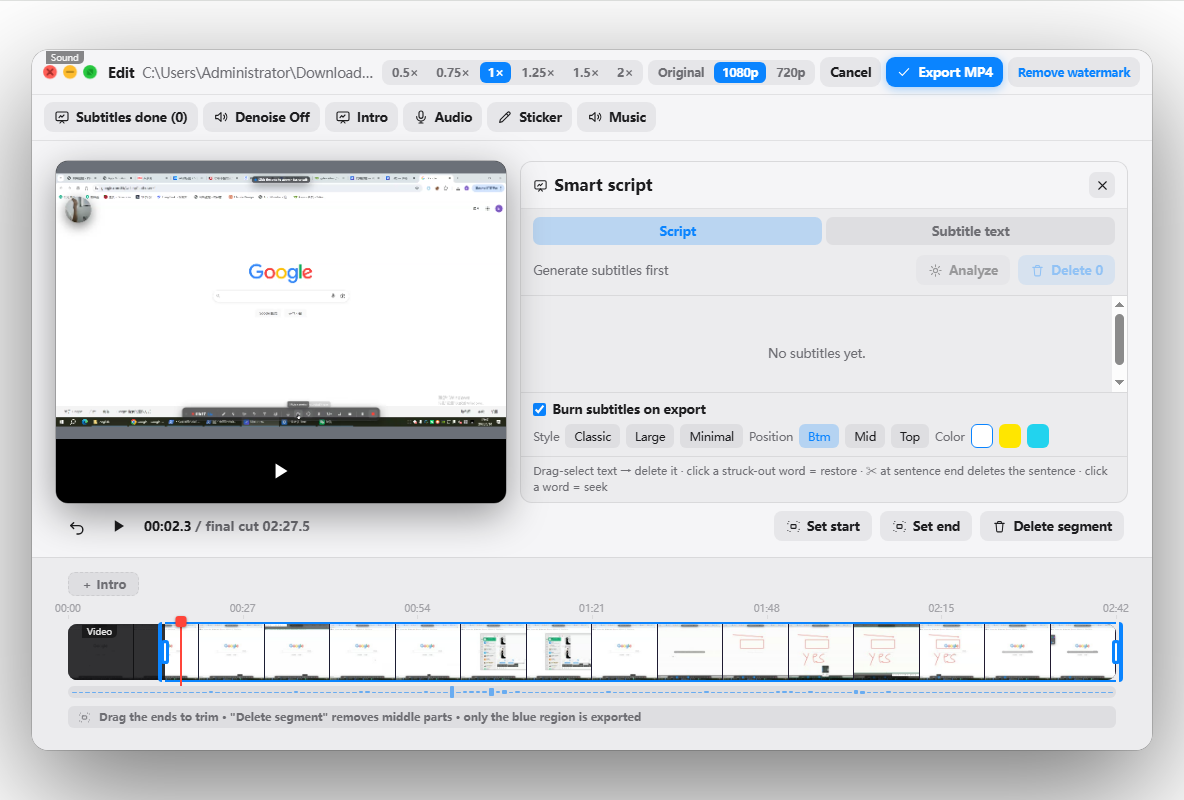
AI voice noise reduction
Once the rambling is trimmed, the audio needs to keep up. AI voice noise reduction is as simple as checking it at export: it denoises the voice, removing fan hum, keyboard clatter, air conditioning and other ambient background noise, so the narration comes through cleaner. If you record at home or in the office where there is a lot of background noise, turning it on makes the final video noticeably crisper.
Things to keep in mind
- Removing filler / retakes needs a transcript first: both rely on the word-level timing in the transcript, so without one generated you can only remove silences. Generate the transcript before you tap "Smart cut".
- Preview, then confirm: every clip up for removal is marked first and only applied after, with clip-by-clip cancel, so you confirm before deleting and avoid cutting useful content.
- Noise reduction is set at export: denoising is an export-stage option and does not affect the original audio while you edit.
FAQ
Q: How does Penbeam remove filler words?
First "Generate subtitles" in the editor, then tap "Remove filler". Using the word-level timing in the transcript, Penbeam locates fillers like "um, uh, like" and verbal tics, marks them as clips to remove, and once you confirm it deletes the matching video segments.
Q: Will removing filler delete things by mistake?
The detection only "marks" clips — it never deletes them outright. Every clip flagged for removal is shown on the timeline so you can preview it and then confirm or cancel each one. If a clip was flagged in error, one tap keeps it, so nothing is cut blindly.
Q: Do I need to generate the transcript before smart cut?
Removing silences does not need a transcript — it works from volume detection alone. But removing filler and removing retakes rely on the word-level timing in the transcript, so those two need you to "Generate subtitles" first. For the most complete result, generate the transcript before you tap "Smart cut".
Q: How does Penbeam reduce noise in a recording?
Just check "AI voice noise reduction" at export. Penbeam denoises the voice, removing fan hum, keyboard clatter, air conditioning and other ambient background noise, so the narration in the final video comes through clear and clean.
Free download for macOS and Windows. Annotate while you talk; auto subtitles when you finish.