In Penbeam you just click "Generate subtitles": transcription runs offline on your computer, and once it is done you can proofread line by line, fix wording and delete a sentence to cut the matching clip — all like editing a document. There is no typing captions out by hand, and nothing gets uploaded to the cloud. Here is the workflow in the order you'll actually do it.
Key takeaways
- Penbeam is an all-in-one desktop tool for teaching — screen recording, editing and subtitles — built for macOS 12.3+ and Windows 10+.
- Subtitles are transcribed offline on your machine with a built-in whisper. Your audio and video never go online or get uploaded, and it works without internet (only the first run downloads the model once).
- You get an editable transcript, so you can fix typos and proper nouns line by line, with the on-screen subtitles updating as you go.
- With text-based editing, deleting a sentence in the transcript automatically cuts the matching video clip — no timeline scrubbing.
- Subtitles can be burned into the picture or exported as a separate subtitle file. The free tier already covers the full subtitle workflow (10 min/session, 1080p, with a watermark).
Generate subtitles in one click
After you record or import a video, open the editor and click "Generate subtitles" in the right-hand panel — Penbeam handles the rest.
- Built-in offline transcription: Penbeam has whisper.cpp built in and transcribes speech right on your machine, fully offline with no uploads, so your audio and video never leave your computer.
- First run downloads the model: the first time you use it, the transcription model downloads automatically once; once that's done it starts transcribing, and after that it works even offline.
- Editable from the start: when transcription finishes you get a transcript split into sentences, each one mapped to a stretch of the video.
Local and cloud transcription each have their trade-offs; for the differences, see local subtitles vs. cloud subtitles.
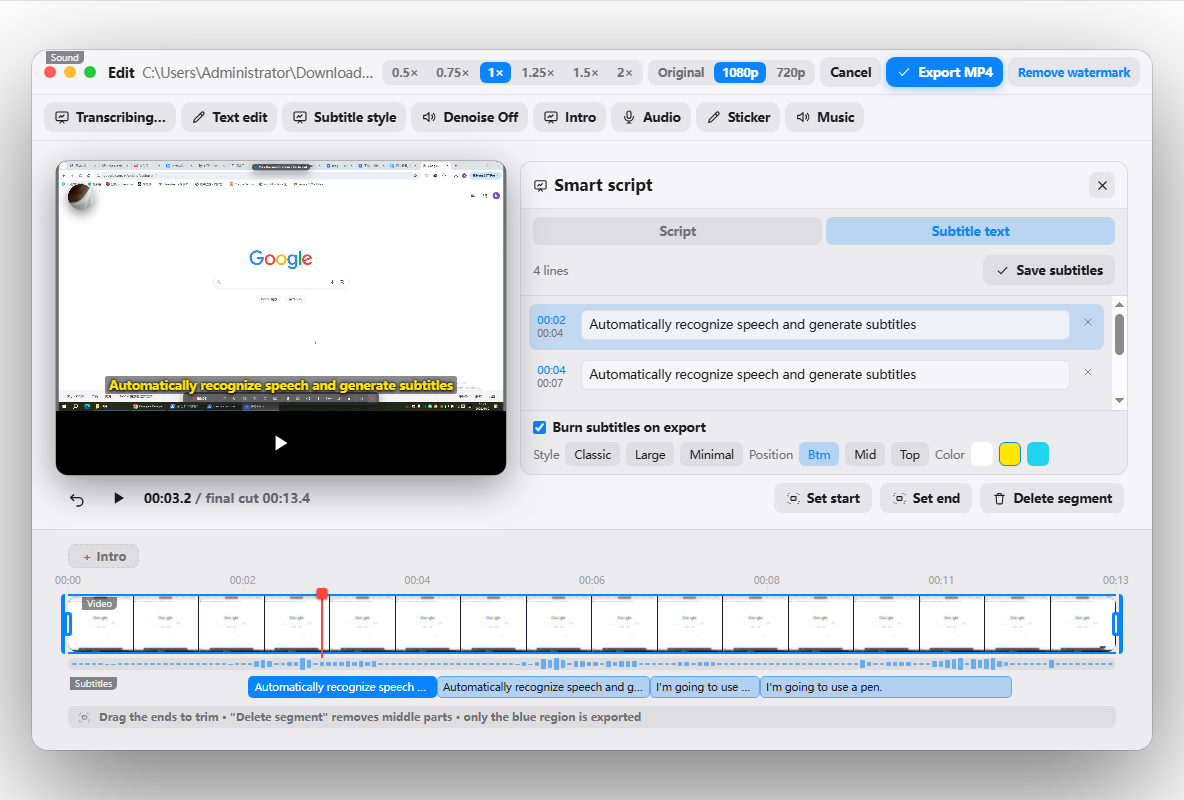
Proofread and fix typos
However accurate the transcription, proper nouns, rare words and heavily accented passages will slip through. The good news is the transcript is directly editable: read through it line by line and click into whichever sentence needs work to fix the text, terminology and typos — the subtitles on the video follow along. A few minutes of proofreading and it's ready to use.
Text-based editing: edit the transcript to cut the video
This is where Penbeam really stands out. The transcript is a piece of text that's aligned sentence by sentence with the video — delete a sentence in the transcript and the matching stretch of video goes with it.
- Flubbed a line and said it again? Delete it in the transcript and the throwaway clip disappears too.
- Opening small talk or an off-topic tangent? Select the relevant sentences and delete them, and the video tightens up automatically.
- No hunting for in and out points on a timeline — you edit the video like a document, which is a real relief for teachers who aren't comfortable with video editors.
Subtitle styling and burn-in
Once the content is set, tune the look and the export method:
- Adjust the style: change the subtitle size, color, position and outline so it reads clearly against your video background without covering up the important content.
- Burn in as hard subtitles: tick burn-in subtitles on export and the subtitles are baked into the picture as hard subtitles, so they show up in any player and on any platform (cloud drives, social video, learning platforms) without relying on a separate subtitle file.
Subtitles are just one step in Penbeam's all-in-one record-and-edit workflow — recording, annotation, editing and subtitles all live in the same app. For the full picture, see the features page. The free tier lets you fully try out subtitle generation and text-based editing; upgrade to Pro when you need to remove the watermark or export longer videos.
FAQ
Q: How do I generate subtitles in Penbeam?
After you record or import a video, open the editor and click "Generate subtitles". Penbeam uses a built-in whisper to transcribe speech on your device. The first time, it downloads the transcription model once; once that's done it starts transcribing and produces an editable transcript — you don't have to do any separate speech-to-text work.
Q: Are the subtitles accurate? Can I fix mistakes?
Clear speech transcribes with good accuracy, but proper nouns, rare words and heavily accented passages can still come out wrong. Penbeam produces an editable transcript, so once transcription is done you can fix the text, typos and terminology line by line. The on-screen subtitles update as you edit, and a single proofreading pass is usually enough.
Q: Are the subtitles uploaded to the cloud?
No. Penbeam builds subtitles with a built-in whisper that runs offline on your own machine — your audio and video never go online or get uploaded to any server, which suits lessons that involve student information or unpublished material. Only the first run goes online to download the transcription model once; after that you can generate subtitles even with no internet.
Q: What is text-based editing?
Text-based editing is one of Penbeam's signature features: after subtitles are generated, deleting a sentence in the transcript makes Penbeam automatically cut the matching video clip. You don't have to hunt for the spot on a timeline — you delete a sentence like you would in a document and the video is cut, which is perfect for removing misspoken or repeated content.
Free download for macOS and Windows. Annotate while you talk; auto subtitles when you finish.