To get your video out of Penbeam, open the editor, click "Export MP4", pick a resolution and playback speed, and you're done. The free-tier watermark disappears once you upgrade to Pro and export again. Below we walk through the export settings, how to choose a resolution, and exactly what the watermark is.
Key takeaways
- Penbeam is a desktop record + edit + subtitle tool built for teaching, and exporting happens in one step right inside the editor.
- The export format is MP4, with a choice of resolution (original / 1080p / 720p) and playback speed (applied to the whole video).
- The free tier adds a watermark to exports, with a 10-minute limit per session and a 1080p maximum.
- Upgrading to Pro removes the watermark and unlocks unlimited length plus the full editing and subtitle features.
- Pro pricing: ¥48/month, ¥288/year, or ¥698 lifetime, with a ¥128/year education discount for students.
How to export an MP4
In the editor, click "Export MP4" and confirm the segments you want to keep — Penbeam then renders your edited project into a single MP4 file. From there you can send the file directly, drop it on a cloud drive, or upload it to a learning platform or video channel. Before exporting, it's worth running one-click smart cut first to strip out the dead air.
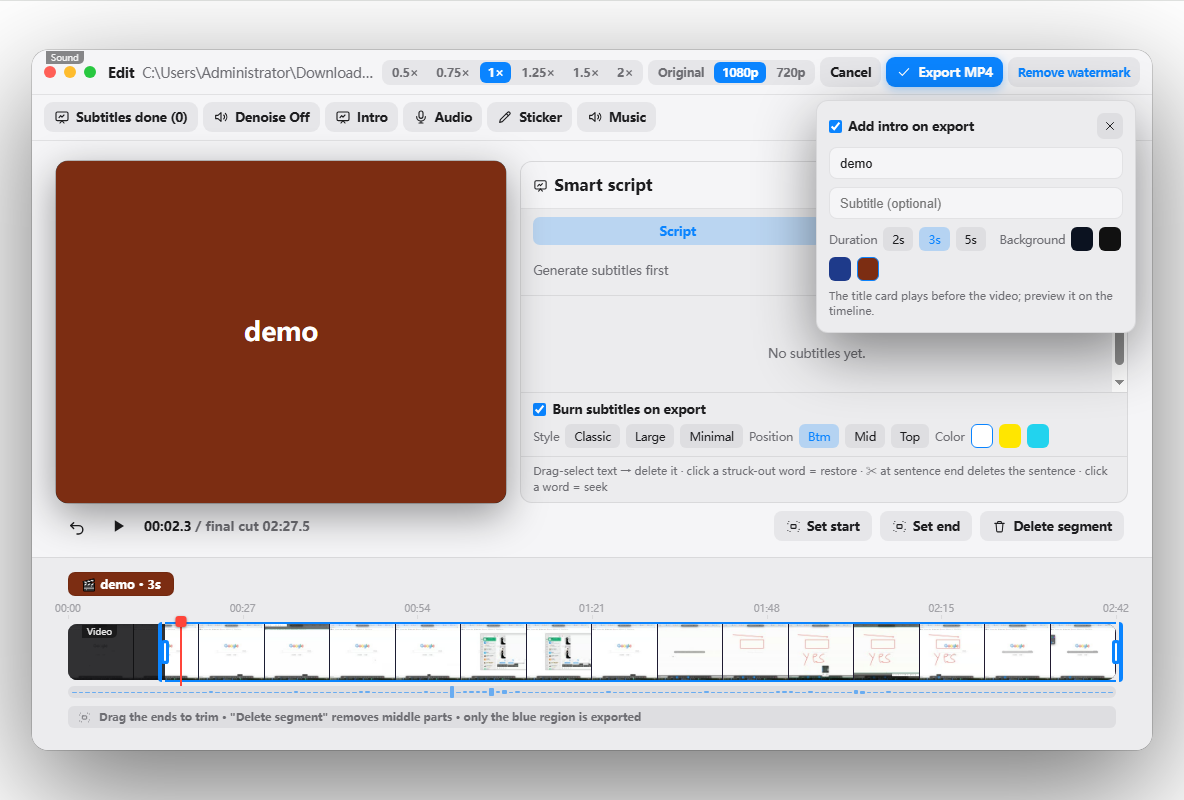
Choosing resolution and speed
The export panel lets you set quality and speed:
- Resolution: there are three options — original / 1080p / 720p. 1080p is sharp and keeps the file small; pure text and code demos still read fine at 720p; original resolution is best saved for footage you plan to re-edit later.
- Playback speed: you can export at a faster speed applied to the whole video. If your delivery runs a little slow, nudging the speed up makes the finished video feel tighter.
Export subtitles, intro and music together
When you export, the subtitles, intro and background music you've added in your project are all baked into the finished video: subtitles can be burned straight into the picture (many students watch on mute, and captions lift completion rates), and the intro and music render exactly as you set them up in the editor. One export, and out comes a complete, ready-to-publish video.
The free-tier watermark and how to remove it
On the free tier, exported videos carry a watermark in the bottom-right corner, with a 10-minute limit per session and a 1080p maximum — plenty for trying things out and getting the whole workflow running. To remove the watermark and unlock unlimited length plus the full editing and subtitle features, upgrade to Pro and export again. Pro pricing is as follows:
- Monthly: ¥48/month
- Yearly: ¥288/year
- Lifetime: ¥698
- Education discount: ¥128 (students)
For the full list of benefits and the upgrade link, see the pricing page. If you haven't installed Penbeam yet, head to the download page to install and try it.
FAQ
Q: How do I export a video from Penbeam?
In the editor, click "Export MP4", confirm the segments you want to keep, then pick a resolution and playback speed and hit export. Penbeam renders your edited project (subtitles, intro, music included) into a single MP4 file that you can send to students or upload to a platform right away.
Q: How do I remove the watermark in Penbeam?
The free tier adds a watermark to the bottom-right corner of exported videos. Upgrade to Pro and your exports come out watermark-free. Pro is ¥48/month, ¥288/year, or ¥698 lifetime, with a ¥128/year education discount for students. You can upgrade on the pricing page.
Q: Which resolution should I export at?
Penbeam supports original, 1080p and 720p. Since lectures are mostly slides, code and screen demos, 1080p is plenty sharp and keeps file sizes reasonable; for pure text or code demos, 720p is still perfectly readable. Original resolution is best when you plan to re-edit the footage later.
Q: 4K or 1080p — which should I choose?
For lectures, go with 1080p. 4K files are large, slow to export, and harder to upload and distribute, while online lessons are mostly text and demos where 1080p looks crisp. Reaching for 4K just bloats the file with no real payoff.
Free download for macOS and Windows. Annotate while you talk; auto subtitles when you finish.