Key takeaways
- Record only meetings and classes you host or are authorized to record, and always inform participants and get consent first.
- Two ways: Zoom’s built-in Record (local/cloud), or a separate screen recorder that captures the Zoom window plus your audio — the latter gives a cleaner file you can edit.
- Raw Zoom recordings include the waiting, "can you hear me?", long pauses and no captions — a quick edit makes the replay watchable.
- Penbeam records the Zoom window with mic + system audio, then adds local offline subtitles and one-click removal of silences and filler words, and exports MP4.
- macOS 12.3+ / Windows 10+. Free tier available; Pro from $39.99/year, education discount.
To record a Zoom meeting or online class for replay, you either use Zoom’s built-in Record button or run a separate screen recorder over the Zoom window — then caption it and cut the dead air so it’s actually watchable. The recording part is easy; the part most people skip is the quick clean-up that turns a rough capture into a usable replay.
First: consent and permission
Before anything technical: record only meetings and classes you host or are authorized to record, tell participants you’re recording, and get consent. Follow your school’s or organization’s policy and local laws. This article assumes you’re recording your own class or an authorized session for students who couldn’t attend.
Two ways to record a Zoom meeting
- Zoom’s built-in Record. As host, click Record (to this computer or the cloud). Simplest, but it’s a straight capture: no editing, captions are limited, and the file includes all the dead air.
- A separate screen recorder. Run a tool like Penbeam over the Zoom window to capture the screen plus your microphone and the system audio (so you also get other speakers). You get a clean file you can immediately caption and trim — and it works even when you don’t have cloud-recording rights.
Recording with a screen recorder
- Choose the Zoom window or full screen in Penbeam.
- Enable mic + system audio so both you and other participants are captured.
- Optionally add a webcam overlay if you want your face in a corner.
- Record, run the class, then stop — you land in the editor, no importing.
Make the replay watchable
This is what separates a usable replay from a 50-minute slog:
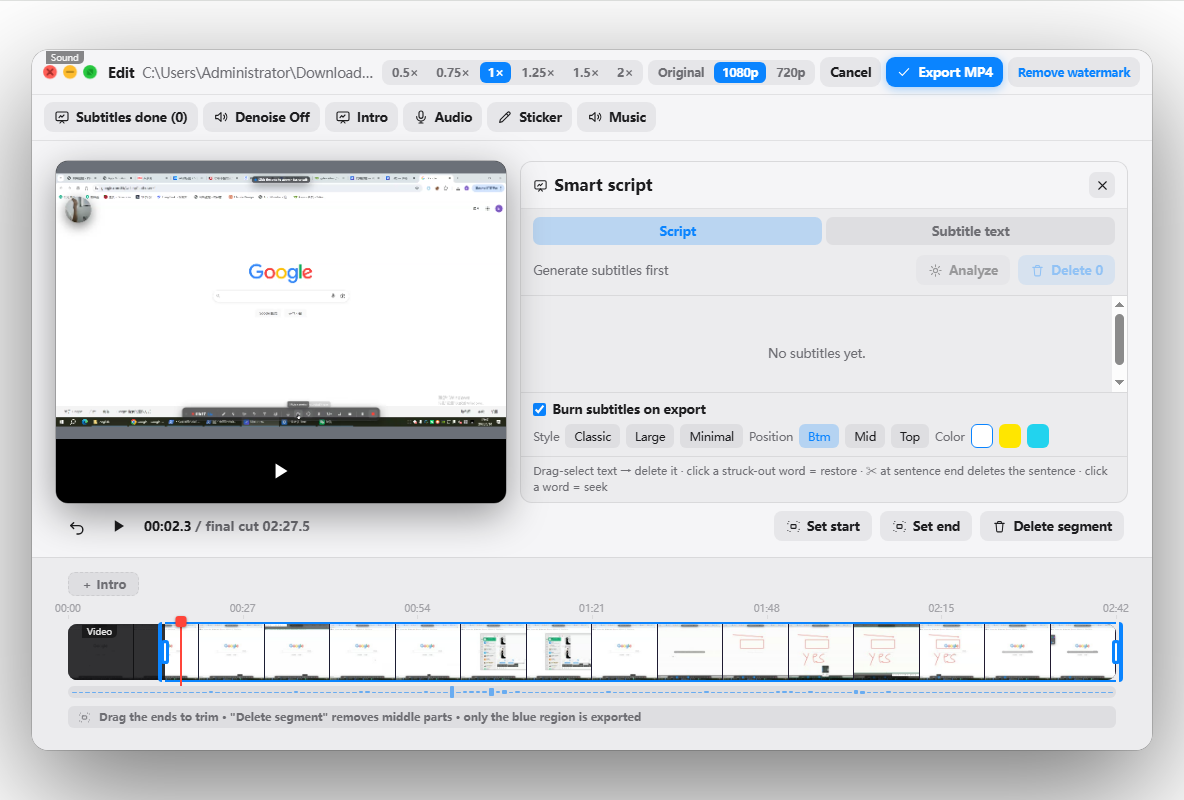
- Cut the dead air. One-click removal of long silences and "um/uh" trims the waiting, the tech checks and the pauses.
- Add subtitles. Generate them locally (offline, word-level timing) so students can skim and search — and proofread names and terms.
- Trim the ends. Drop the "is everyone here?" intro and the goodbye shuffle.
- Export MP4. Post it to your LMS or share a link.
Penbeam keeps recording, subtitles and editing in one app, so a rough Zoom capture becomes a tidy, captioned replay without a separate editor. It’s free to try on macOS and Windows; Pro unlocks the advanced clean-up. Download from lecta.cc/download or see the features.
FAQ
How do I record a Zoom meeting I am hosting?
You can use Zoom’s built-in Record button (local or cloud), or run a separate screen recorder that captures the Zoom window and your audio. A screen recorder gives you a cleaner file you can then caption and trim; with Penbeam you record the Zoom window plus mic and system audio, then edit and export an MP4.
Should I always tell people the meeting is being recorded?
Yes. Always inform participants and get consent before recording, and follow your institution’s and local rules. Record meetings and classes you host or are authorized to record.
Why is my Zoom recording file so rough?
Zoom’s local recording is a straight capture with no editing — it includes the waiting, the "can you hear me?", long pauses and no captions. Running it through an editor to add subtitles and cut dead air makes the replay much more watchable.
Can I add subtitles to a recorded Zoom class?
Yes. Import or record the session into a tool like Penbeam and generate subtitles locally (offline, with word-level timing), then edit the text and export with captions burned in or as an SRT file.
Free download for macOS and Windows. Annotate while you talk; auto subtitles when you finish.