Key takeaways
- To record a presentation, show your slides full-screen, capture your microphone (and optionally a webcam overlay), narrate as you advance, then caption and trim.
- PowerPoint’s built-in "Record Slide Show" is fine for slides-only narration but lacks subtitles, easy webcam overlay and editing.
- A screen recorder captures any app — slides, browser, PDF, software demo — and adds annotation, captions and clean-up.
- Penbeam records slides + mic + webcam overlay with live annotation, then generates local subtitles, removes silences/filler words, and exports MP4 — one app, macOS 12.3+ / Windows 10+.
- Export MP4 (H.264) 1080p at a moderate bitrate for sharp slides without a huge file. Free tier available; Pro from $39.99/year.
To record a presentation, you put your slides in full-screen mode, run a recorder that captures your voice (and your face, if you want), and narrate while advancing the slides — then caption and trim the result. The whole thing can be done without a video editor. Here’s the clean workflow.
Prep your slides and audio
- Rehearse the flow, not a script. Know your opening line and how each slide leads to the next; it kills the "um, so…" starts.
- Bump up font sizes. Slide text that’s comfortable in the room can look small in a 1080p video.
- Test your mic for 10 seconds. Record, play it back. Clear audio matters more than 4K video.
- Silence notifications. Do Not Disturb (Mac) / Focus Assist (Windows) so nothing pops up mid-slide.
Two ways: PowerPoint vs screen recorder
PowerPoint’s "Record Slide Show" records narration and timings slide by slide, and can embed a small webcam. It’s convenient if you live entirely in PowerPoint — but it’s tied to PowerPoint, has no real editing, and subtitles are limited.
A screen recorder captures whatever is on screen, so it works the same whether you present in PowerPoint, Keynote, Google Slides, a PDF or a browser — and tools like Penbeam add a webcam overlay, live annotation, automatic subtitles and one-click clean-up. If your presentation includes anything beyond slides (a demo, a website), the screen recorder is the more flexible choice.
Step by step: record the presentation
- Open your slides full-screen (presenter or slideshow mode).
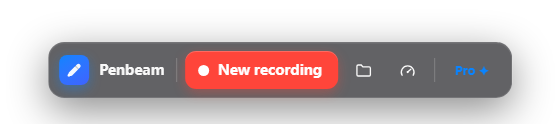
- In Penbeam, choose that screen/window, turn on the webcam overlay in a corner, and select your mic.
- Start with a countdown, then narrate while you advance slides. Annotate or zoom to point at details as you go.
- Stop — you land in the editor with the recording ready, no importing.
After: captions, trim, export
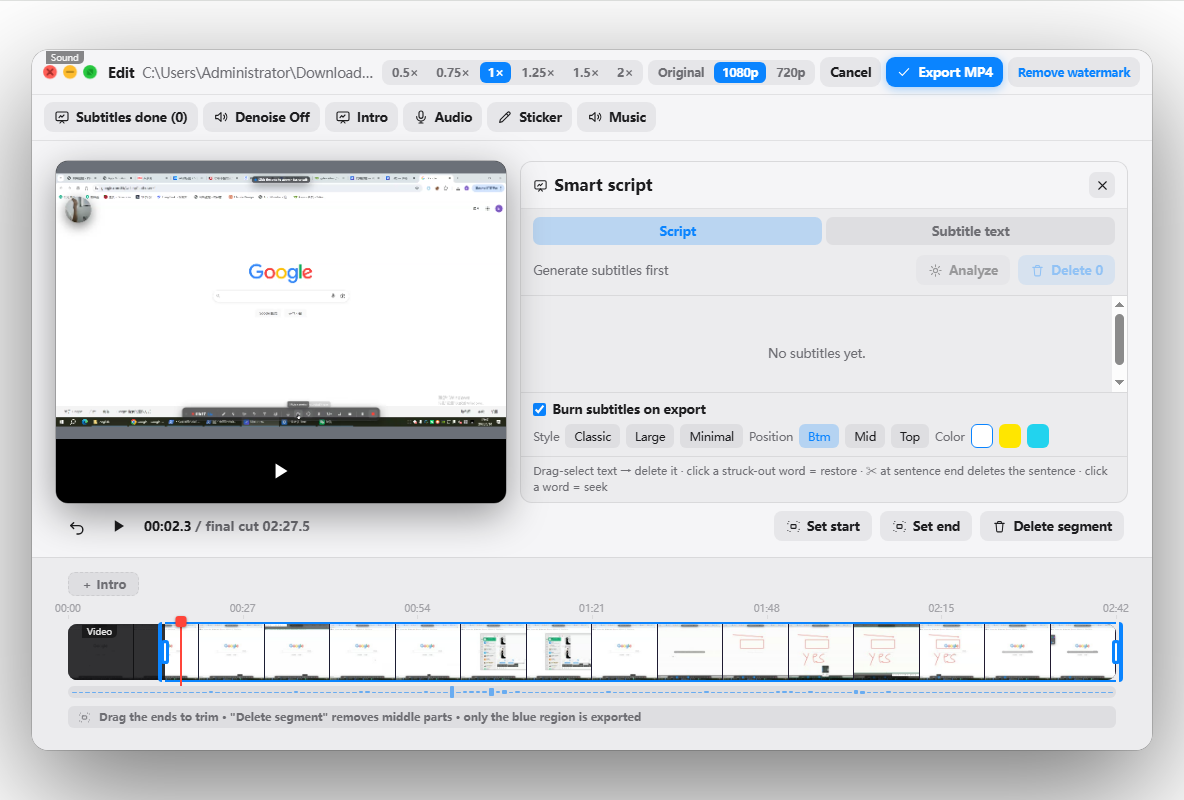
- Generate subtitles locally (offline, word-level timing) and proofread names and terms.
- Trim dead air and "um/uh" in one pass so the presentation is tight.
- Export MP4 (H.264), 1080p, moderate bitrate — sharp slide text without a giant file.
Penbeam keeps recording, annotation, subtitles and editing in one app, so a presentation goes from slides to a finished video without a separate editor. It’s free to try on macOS and Windows; Pro unlocks the advanced features. Download from lecta.cc/download or see the features.
FAQ
How do I record a presentation with audio?
Open your slides in presenter/full-screen mode, start a screen recorder that captures your microphone, and narrate as you advance the slides. With a tool like Penbeam you can also add a webcam overlay and annotations, then caption and trim the result and export an MP4.
Should I use PowerPoint’s built-in recording or a screen recorder?
PowerPoint’s built-in "Record Slide Show" works for slides-only narration, but it’s tied to PowerPoint and lacks subtitles, easy webcam overlay and editing. A screen recorder captures any app the same way and adds annotation, captions and clean-up.
Can I record a presentation with my face on screen?
Yes — use a screen recorder with a webcam overlay so a small bubble of your face sits in a corner over the slides. Penbeam supports a circular or framed webcam overlay while recording.
How do I keep the recorded presentation file from being too large?
Export as MP4 (H.264) at 1080p with a moderate bitrate. If it’s still large, trim dead air and silences, which also makes the video tighter.
Free download for macOS and Windows. Annotate while you talk; auto subtitles when you finish.